Historically, multi-cam editing—the process of synchronizing footage from three or four different cameras shooting the same event—was strictly reserved for desktop software like Final Cut Pro. Mobile processors simply could not handle decoding multiple 4K video streams simultaneously. However, with the raw power of modern ARM chips and CapCut Pro's optimized rendering pipeline, you can now edit full podcast interviews, live music performances, and dynamic YouTube talking-head videos entirely on your phone. In this 1,500-word technical guide, we will break down the manual multi-cam synchronization process.
1. The Setup: The Importance of a 'Clap'
The biggest hurdle in multi-cam editing is synchronization. If Camera A is recording from the front, Camera B is recording from the side, and a dedicated microphone is recording the high-quality audio, they all started recording at different times. If they are even two frames out of sync, the video will look like a badly dubbed martial arts movie.
Professional film sets use a Slate (the clapperboard) to solve this. The visual impact of the clapper closing is synchronized with the sharp 'crack' sound it makes on the audio track. If you do not have a slate, you must use a 'Clap Sync'. Start all your cameras and your audio recorder. Stand in the center of the room where all cameras can clearly see your hands, and clap loudly one time. This creates a massive visual spike on every single audio waveform, providing you with an absolute universal reference point.
2. Importing and Stacking Your Timelines
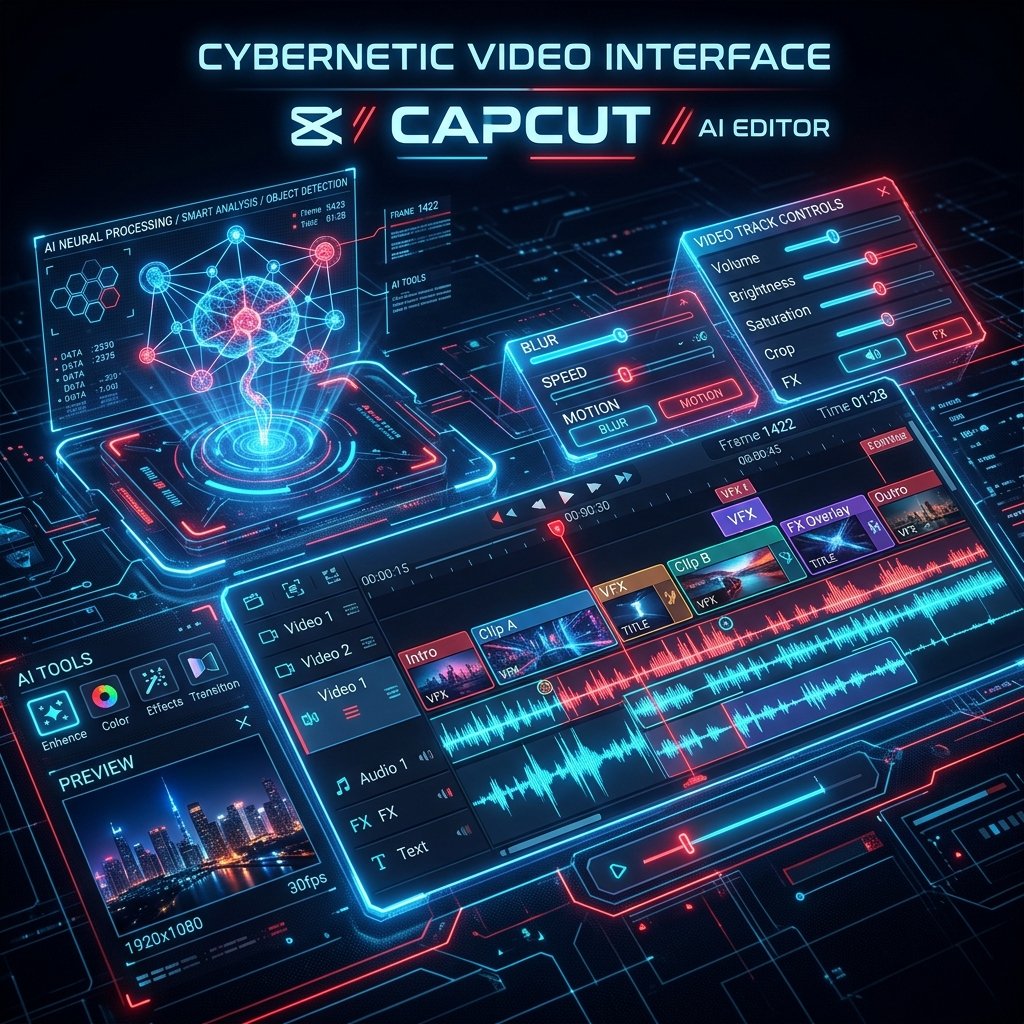
CapCut operates on a track-based timeline. Your primary timeline is 'Track 1', and everything else is imported as an 'Overlay'. To build your multi-cam sequence, start by importing your primary, highest-quality audio file (usually the WAV file from your dedicated microphone). This is your foundation; everything else must sync to this track.
Next, import Camera A onto the main video track. Then, use the 'Overlay' function to import Camera B. If you have a third angle, import Camera C as another Overlay. You now have a massive block of unsynced media. Do not attempt to edit or chop any clips yet. You must sync the entire sequence first. Expand the timeline vertically so you can clearly see the audio waveforms attached to each video clip.
3. The Manual Waveform Sync
CapCut Pro does not currently feature an 'Auto-Sync by Audio' button, which means you must perform a manual waveform sync. Zoom into your timeline horizontally to the absolute maximum level. This allows you to see the individual frames of your project.
Look at your primary audio track (the dedicated microphone). Scroll until you find the massive spike caused by your 'Clap Sync'. Place your playhead exactly on the peak of that spike. Now, look at the audio waveform attached to Camera A. Drag the Camera A clip left or right until its clap spike perfectly aligns with the playhead. Repeat this process for Camera B and Camera C. Once all the spikes are perfectly vertically aligned, your entire project is in sync. Immediately select the video clips and MUTE their original audio. You only want the audience hearing the pristine, dedicated microphone track.
4. The 'Cookie-Cutter' Editing Technique
With your clips synced, you now have a problem: Camera C (the top overlay) is completely blocking Camera A and Camera B. To edit a multi-cam sequence on a mobile device, we use a subtractive method known as 'Cookie-Cutter' editing.
Play through your timeline. When you want the viewer to see Camera A (the main track), simply use the 'Split' tool on the top Overlay (Camera C) and delete the section you don't want. The timeline will immediately 'fall through' to the clip underneath. By systematically splitting and deleting chunks of the top layers, you are actively 'switching' camera angles. This is incredibly fast and efficient because your clips never move left or right on the timeline, meaning they will never fall out of sync with your master audio track.
5. Color Matching Multiple Cameras
Unless you are shooting with three identical cameras with identical lenses, your angles will have different color science. An iPhone 15 Pro maxes out contrast differently than a Sony A7SIII. A multi-cam edit looks incredibly amateurish if the color temperature aggressively shifts every time you cut to a new angle.
To fix this, pick one camera as your 'Hero Camera' (usually the main wide shot). Apply your color grading, LUTs, and exposure adjustments to this clip. Once it looks perfect, move to your second angle. Use the 'Adjust' panel to match the second camera to the Hero Camera. If the second camera looks too warm, lower the 'Temperature' slider. If it lacks contrast, adjust the 'Tone Curve'. Once the second camera matches perfectly, right-click (or long-press) its adjustment layer and select 'Apply to All' for that specific track. By carefully syncing your waveforms, utilizing subtractive editing, and manually color-matching your sensors, you can produce a 3-camera podcast edit on a smartphone that looks indistinguishable from a Hollywood studio production.